
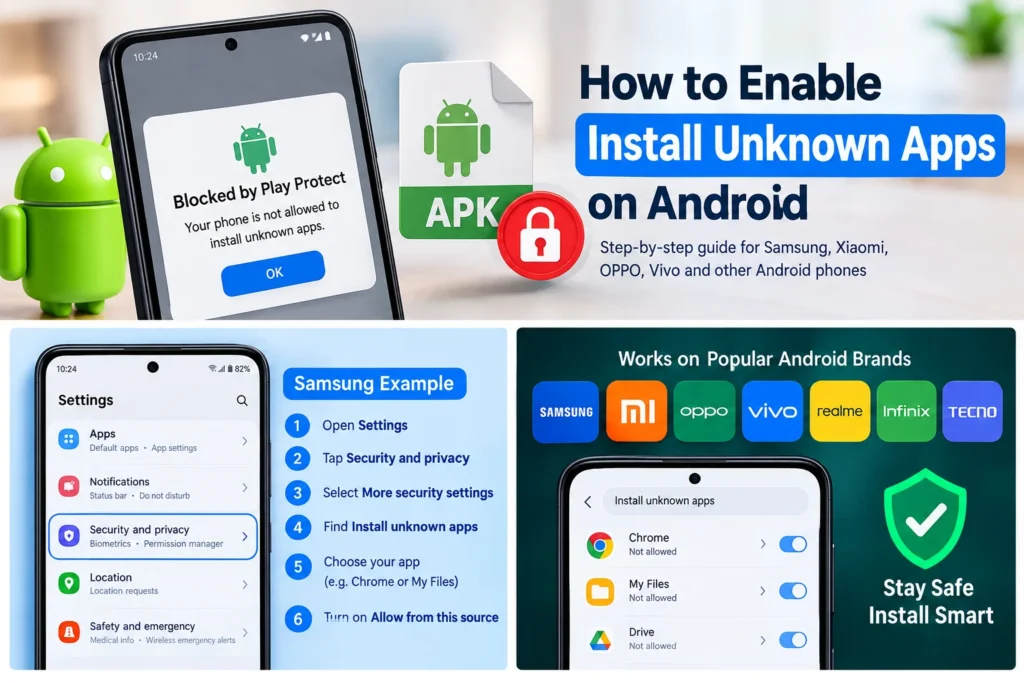
Android phones normally allow users to install applications from trusted sources such as the Google Play Store. However, sometimes you may need to install an APK file downloaded from a website. When you try to open an APK, Android may show a message saying that your phone is not allowed to install unknown apps.
This security feature is designed to prevent applications from being installed from sources you do not trust. If you know where the APK came from and want to continue, you can give permission to the specific app you are using to open the APK.
The settings can be slightly different depending on your phone brand and Android version. Below is a simple guide for Samsung, Xiaomi, OPPO, Vivo, and other popular Android devices.
What Does Install Unknown Apps Mean on Android?
Install Unknown Apps is an Android security permission that controls whether an application can install APK files from outside the Google Play Store.
For example, if you download an APK through Chrome, the permission may need to be enabled for Chrome. If you open the APK through a file manager, the permission may need to be enabled for that file manager instead.
This means you do not always need to enable the permission for your entire phone. Android generally lets you choose which application is allowed to install APK files.
How to Enable Install Unknown Apps on Samsung
Samsung Galaxy phones use One UI, so the exact wording can vary slightly between Android and One UI versions.
Follow these steps:
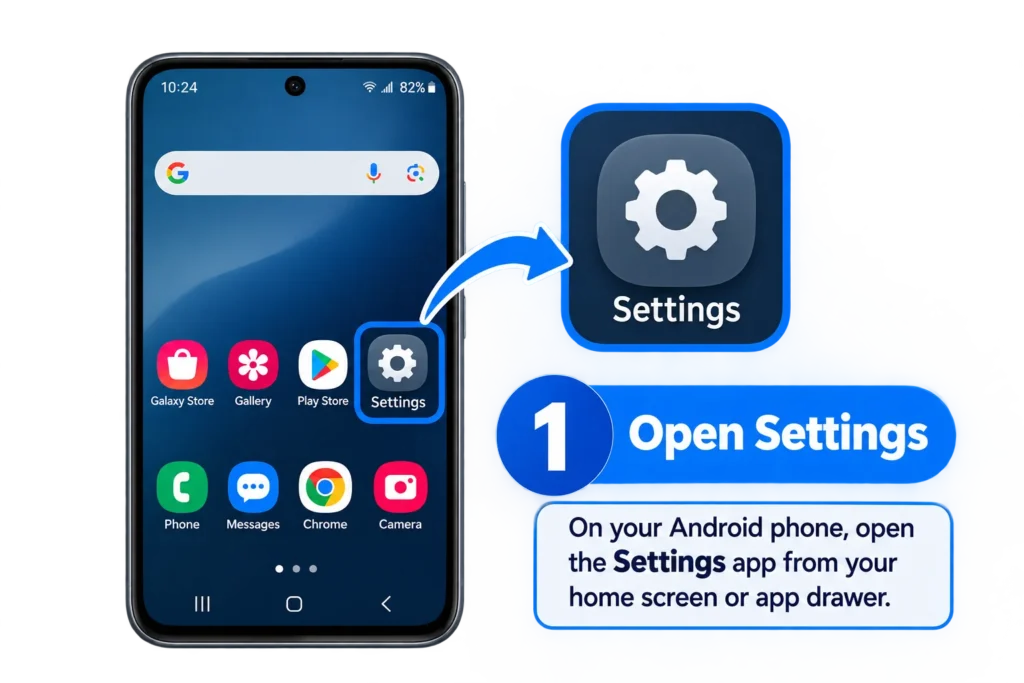
- Open Settings on your Samsung phone.
- Tap Security and privacy.
- Select More security settings.
- Find Install unknown apps.
- Choose the application you will use to open the APK, such as Chrome or My Files.
- Turn on Allow from this source.
After enabling the permission, return to the APK file and try installing it again.
Samsung APK Installation Permission
If you downloaded the APK through Chrome, make sure the permission is enabled specifically for Chrome. If the APK was downloaded and opened through Samsung’s My Files application, select My Files instead.
You can turn this permission off again after installing the application.
How to Enable Install Unknown Apps on Xiaomi
Xiaomi, Redmi, and POCO phones can use MIUI or HyperOS depending on the device and software version.
To allow APK installation:
- Open Settings.
- Go to Privacy protection or search for Install unknown apps.
- Open the option related to installing unknown applications.
- Select the application you are using to open the APK.
- Enable Allow from this source.
You can also use the search bar inside Settings if you cannot find the option manually.
Xiaomi and Redmi APK Permission
On some Xiaomi and Redmi devices, the menu location may differ according to the HyperOS or MIUI version. Searching Install unknown apps in Settings is usually the quickest way to find the correct option.
How to Enable Install Unknown Apps on OPPO
OPPO phones may use ColorOS, and the menu can change between different versions.
Try the following steps:
- Open Settings.
- Go to Security or Privacy.
- Look for Install unknown apps.
- Select the browser or file manager you are using.
- Turn on Allow from this source.
Now return to the downloaded APK and open it again.
If you cannot find the option, use the Settings search feature and type Install unknown apps.
How to Enable Install Unknown Apps on Vivo
Vivo devices use Funtouch OS on many models. The exact settings can vary depending on the Android and Funtouch OS version.
Follow these general steps:
- Open Settings.
- Search for Install unknown apps.
- Open the setting when it appears.
- Select Chrome, Browser, Files, or the application being used to open the APK.
- Enable Allow from this source.
After this permission is enabled, you can return to the APK and start the installation.
How to Enable Install Unknown Apps on Realme
Realme phones can also have different settings depending on the Realme UI version.
Open Settings and search for Install unknown apps. Select the application from which you are opening the APK and enable Allow from this source.
If you are using Chrome to download and open the APK, Chrome may be the application that needs permission.
How to Enable Install Unknown Apps on Infinix and Tecno
Infinix and Tecno phones may use XOS or HiOS, depending on the device.
The easiest method is to open Settings and search for Install unknown apps. When the option appears, select the application you are using to access the APK and enable the permission.
The menu name can be different on older devices, so searching through Settings is often easier than following an exact menu path.
How to Enable Install Unknown Apps on Android 12, 13, 14, 15 and Newer Versions
Modern Android versions generally use a permission system where you give APK installation access to individual applications.
The general process is:
- Open Settings.
- Search for Install unknown apps.
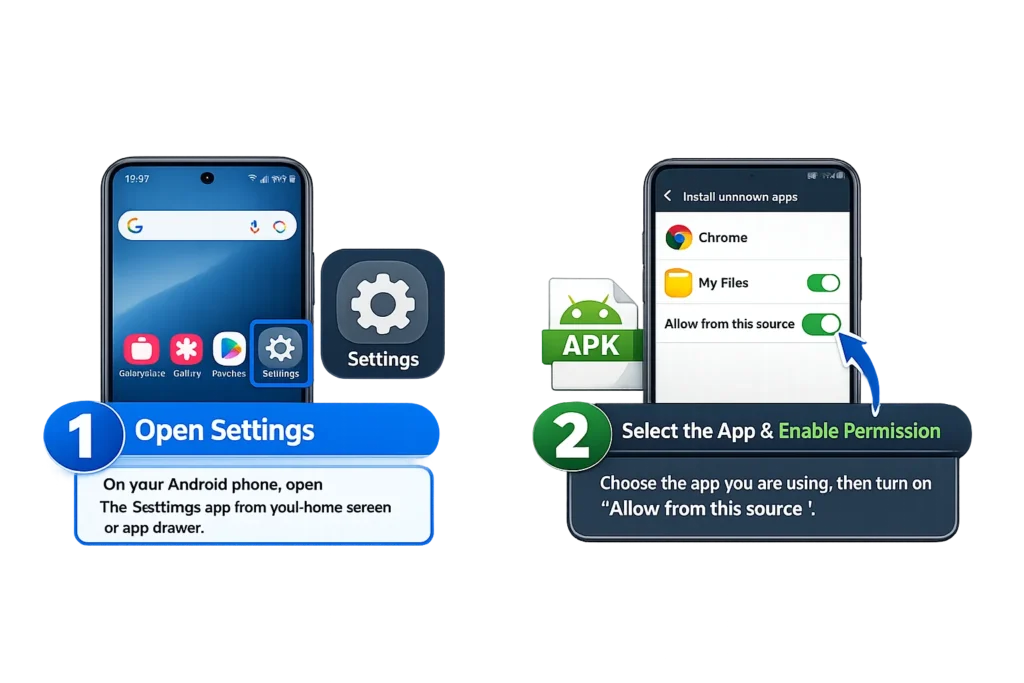
- Select the application you are using.
- Enable Allow from this source.
- Return to the APK file.
- Start the installation.
The setting may be under Apps, Special app access, Security, or Privacy, depending on the phone manufacturer.
Why Can’t I Find Install Unknown Apps?
If you cannot find the setting, there is no need to worry. Android manufacturers place this option in different sections.
Try searching for these terms inside Settings:
Install unknown apps
Unknown apps
Unknown sources
Special app access
You can also open your phone’s Settings search and type APK or unknown.
On some older Android versions, the setting may be called Unknown Sources instead of Install unknown apps.
Why Does Android Block APK Installation?
Android restricts APK installations from unknown sources as a security measure. An APK downloaded from an unfamiliar website could contain unwanted software, malicious code, or other harmful content.
This is why you should check the source of an APK before installing it.
Do not give unknown applications unnecessary permissions, and avoid APK files from websites that look suspicious or repeatedly redirect you to unrelated downloads.
What Should You Check Before Installing an APK?
Before installing an APK, check a few basic things:
Download From a Trusted Source
Make sure you know where the APK came from. Avoid downloading applications from random websites or links sent by unknown people.
Check the App Name
Confirm that the APK is actually the application you intended to download. A misleading file name can be a warning sign.
Review Permissions
After installation, check what permissions the application requests. An app asking for permissions unrelated to its purpose deserves additional caution.
Keep Android Updated
Using an updated Android version gives your device the latest available security improvements for your device.
Use Google Play Protect
Google Play Protect can scan applications and warn users about potentially harmful apps. Keep it enabled unless you have a specific reason to change its settings.
How to Turn Off Install Unknown Apps Permission
You do not have to leave the permission enabled permanently.
After installing the APK, you can return to the same setting and disable Allow from this source.
For example, if you enabled the permission for Chrome:
Settings → Install unknown apps → Chrome → Turn Off Allow from this source
The exact menu names may differ depending on your Android phone.
Can I Install an APK Without Enabling This Permission?
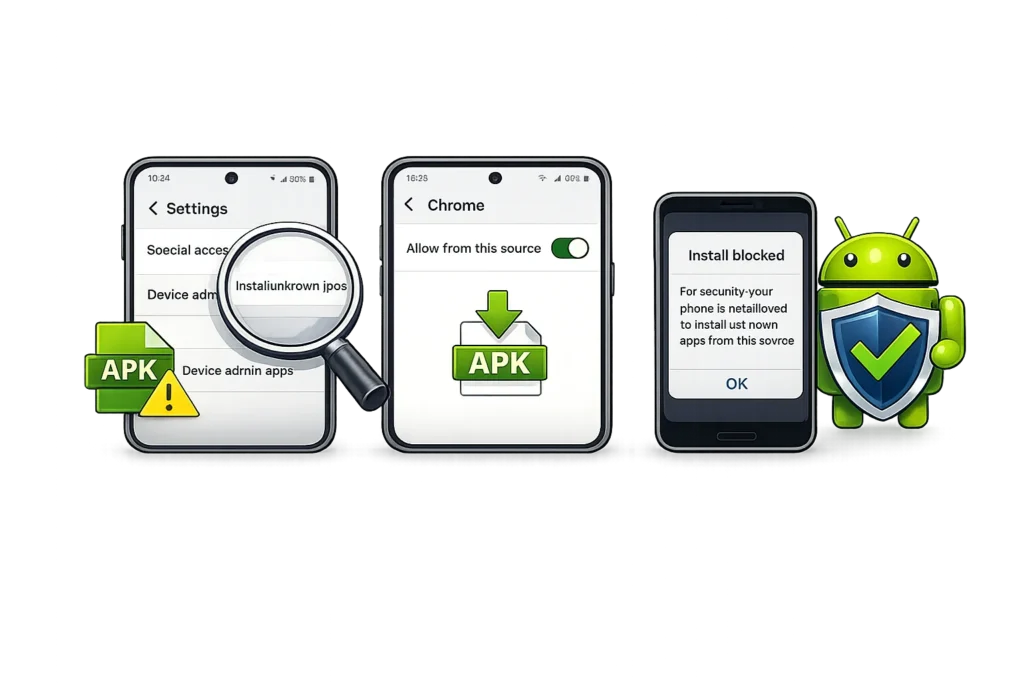
Usually, Android will prevent an application from installing an APK when the application does not have permission to install unknown apps.
If you see a message saying that your phone is not allowed to install unknown apps, you normally need to give the application that is opening the APK the required permission.
For security, Android uses this permission on a per application basis rather than simply allowing every application to install APK files.
Install Unknown Apps Not Working?
If the APK still does not install after enabling the permission, the problem may not be related to the unknown apps setting.
Check whether:
- The APK download completed correctly.
- You have enough storage space.
- The APK supports your Android version.
- The APK is compatible with your phone architecture.
- An existing version of the same app is causing a conflict.
- The downloaded file is damaged.
- Google Play Protect or another security feature has flagged the application.
If the APK comes from an unreliable source, it is safer not to install it 88DD Game.
Final Words
The Install Unknown Apps permission allows Android users to install APK files from sources outside the Google Play Store. Samsung, Xiaomi, OPPO, Vivo, Realme, Infinix, Tecno, and other Android phones provide this option, although its location can vary between devices and software versions.
The easiest method on most modern Android phones is to open Settings, search for Install unknown apps, select the application being used to open the APK, and enable Allow from this source.
Once the APK has been installed, you can disable the permission again. Always check the source of an APK before installing it and avoid files that you do not trust.